
Academy › Website Builder › Lesson 2
~2.5 minBeginnerDraft vs published: how going live works
The one mental model that makes everything else click: your private draft, the preview, and what the world actually sees.
Step by step
Follow along
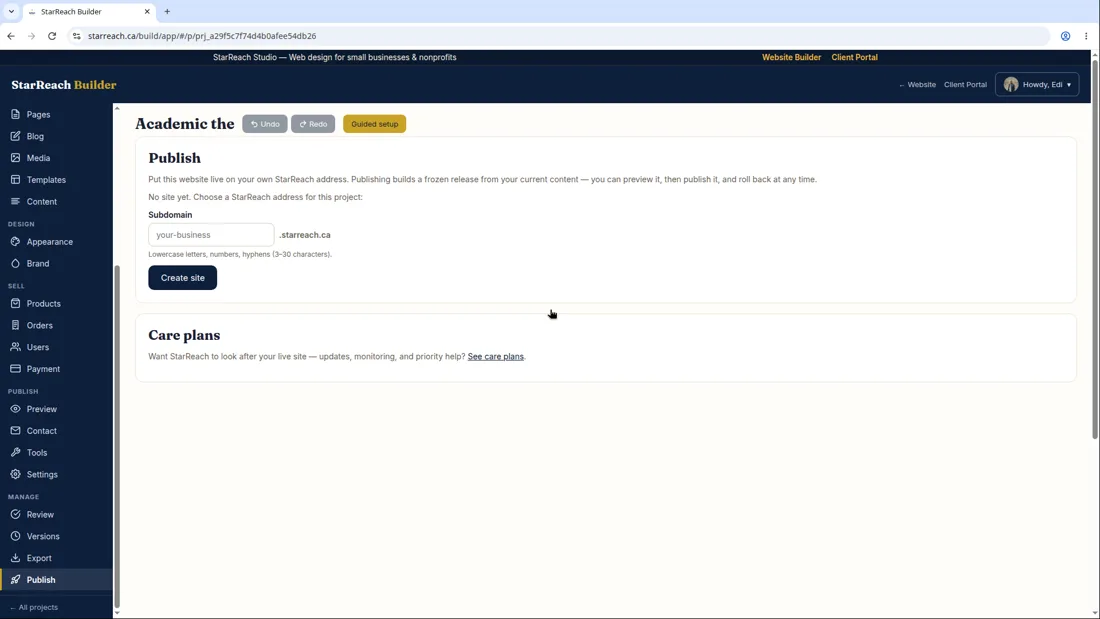
- Understand the two copies of your site: Draft — your private working copy. Only you can see it. This is where every edit happens. Published — the version the world sees at your web address.
- Edit freely in the workspace. You are always editing the draft — the published site is never touched while you work.
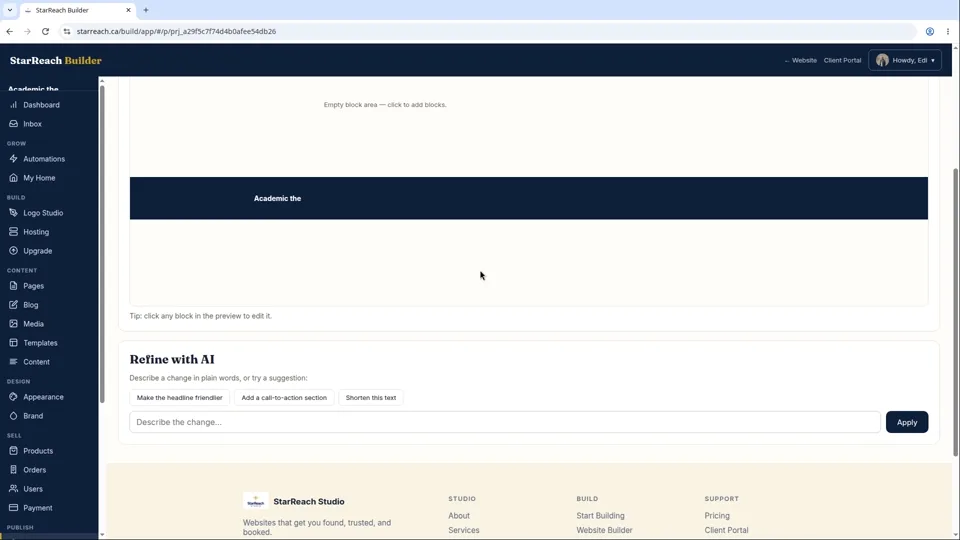
- Click Preview any time to see exactly what visitors will see, through a safe private link. Check it on desktop and on the phone preview.
- When you're happy, click Publish. We freeze your draft as a release and run an automatic health check on it.
- Safety net: if the health check finds a problem, we automatically roll back to your previous version. Your visitors never see a broken site because of a publish. Ever.
- Keep editing after publishing — new changes stay in your draft until you publish again. Publish as often as you like; each publish replaces the live version with your latest draft.
- Your live address: during your trial it's a temporary starreach.ca address. Once you connect a custom domain, that's what the world uses.
In writing
The lesson in writing
Everything in the Builder rests on one idea: your site exists in two copies. The draft is your private working copy — every edit you make, every word, photo and colour, happens there, and only you can see it. The published copy is the version the world sees at your web address. The two copies are separate on purpose: nothing you type, delete or rearrange in the draft can break the site your customers are using right now. The published copy simply keeps serving the previous version until you tell it to change.
That separation gives you a calm working rhythm. Edit in the draft whenever you like — a price in the morning, a photo at lunch, new opening hours at midnight. When a change feels ready, click Preview and look at it the way a visitor will: first on the desktop view, then on the phone preview, because most of your visitors will meet your business on a phone. Preview runs through a safe private link, so you can even send it to someone whose opinion you trust before anything goes live.
Publishing is a deliberate, protected step. When you click Publish, we freeze your draft as a release — a snapshot that becomes the edition of record — and run an automatic health check over it, making sure every page loads and everything works. If that check finds a problem, we roll back to your previous version automatically; your visitors never see a broken site because of a publish. Each successful publish replaces the live version with your latest draft as a whole, so there is no wrong order to publish in and no partial state to manage: publish once a day or once a year, the model is the same.
One address note: during your trial, the published copy lives at a temporary starreach.ca address. When you connect a custom domain, the world finds the same published copy at your own address instead. Connecting a domain changes where people find the result — it does not change the draft-and-publish model you work in every day.
Before you move on
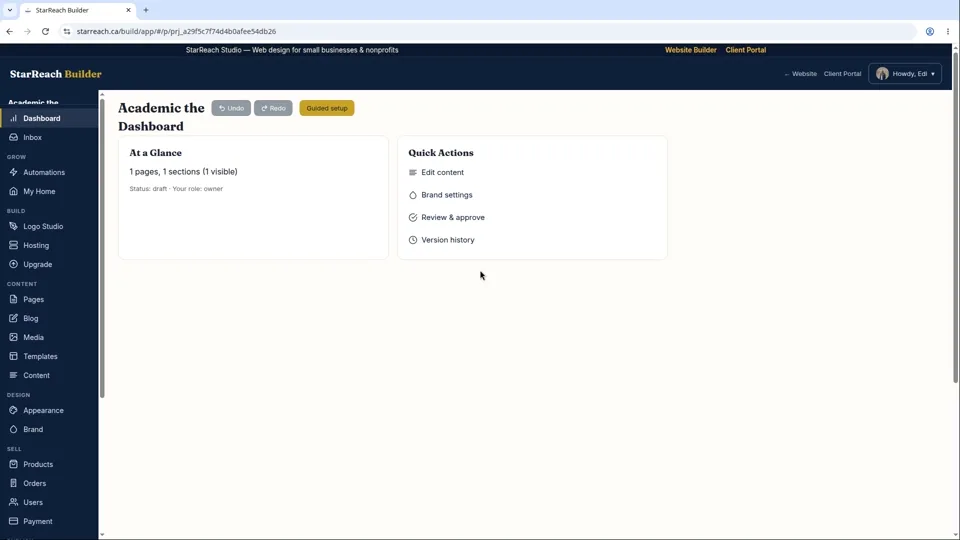
- Open your workspace and find the Preview button before you change anything, so you know where your safety check lives.
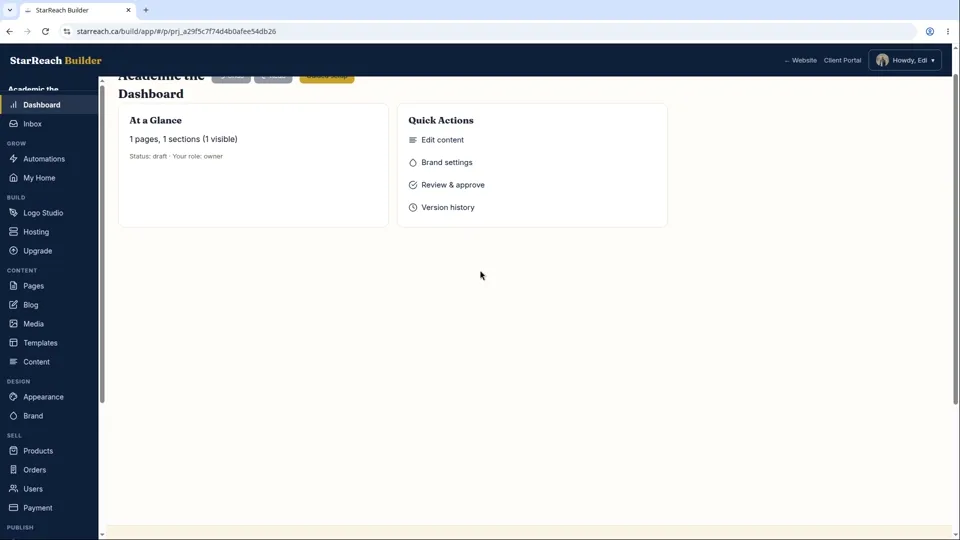
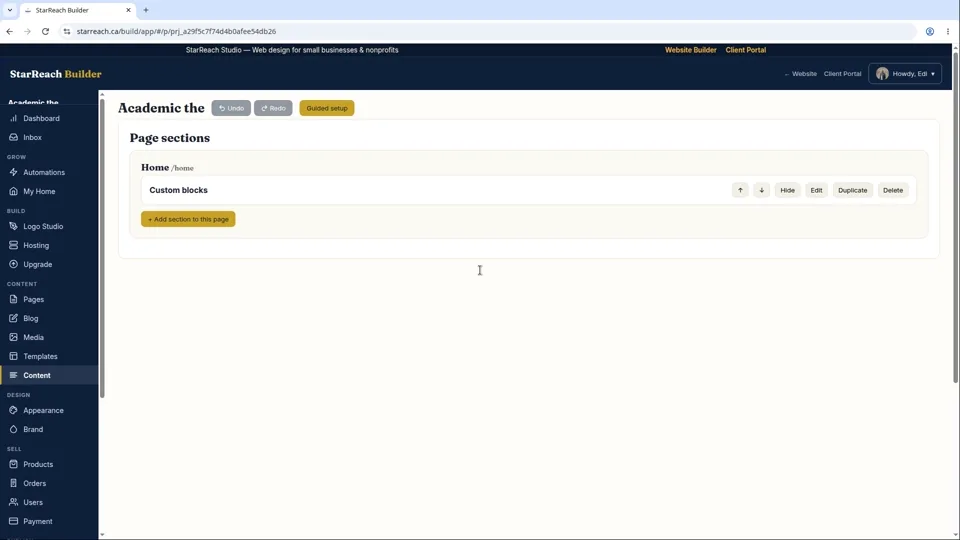
- Make one tiny edit in the draft, preview it on the phone view, then publish it — run the full loop once, on something small.
- Open your live address in a private browser window and confirm you are seeing the published copy exactly as a visitor does.
Read the full video transcript
Here's the single most important idea in the Builder. Get this, and everything else makes sense.
Your website exists in two copies.
The first is your draft. It's private. Only you can see it. Every edit you make — every word, every photo, every color — happens in the draft.
The second is your published site. That's the version the world sees at your web address.
Here's why that matters: you can never break your live site by editing. It's simply not possible. You're always working on the draft. The published version sits there, untouched, until you say otherwise.
When you want the world to see your changes, you hit Preview first. That shows you exactly what visitors will see — same layout, same content — through a safe private link. Check it on desktop, then flip to the phone preview. Most of your visitors will be on phones. Make sure it looks great there.
Happy with it? Hit Publish.
Here's what happens behind the scenes. We freeze your draft as a release — a snapshot. Then we run an automatic health check on it, making sure every page loads and everything works.
And here's our promise: if that health check finds a problem, we roll back to your previous version automatically. Your visitors never see a broken site because of a publish. That's not a feature we bolted on. It's how publishing works here.
After you publish, keep editing whenever you like. Those changes stay in your draft, invisible to the world, until you publish again. Publish once a day or once a year — each publish simply replaces the live version with your latest draft.
So: draft is yours, published is the world's, and preview is how you check before you commit. That's the whole model. Everything in the Builder follows from it.
Try it now
Open the product and put this lesson into practice — it takes seconds.