
Academy › Client Portal › Lesson 7
~2.5 minBeginnerWelcome to your Client Portal
Sign in with a magic link, tour the dashboard, and see everything you can do in one place.
Step by step
Follow along
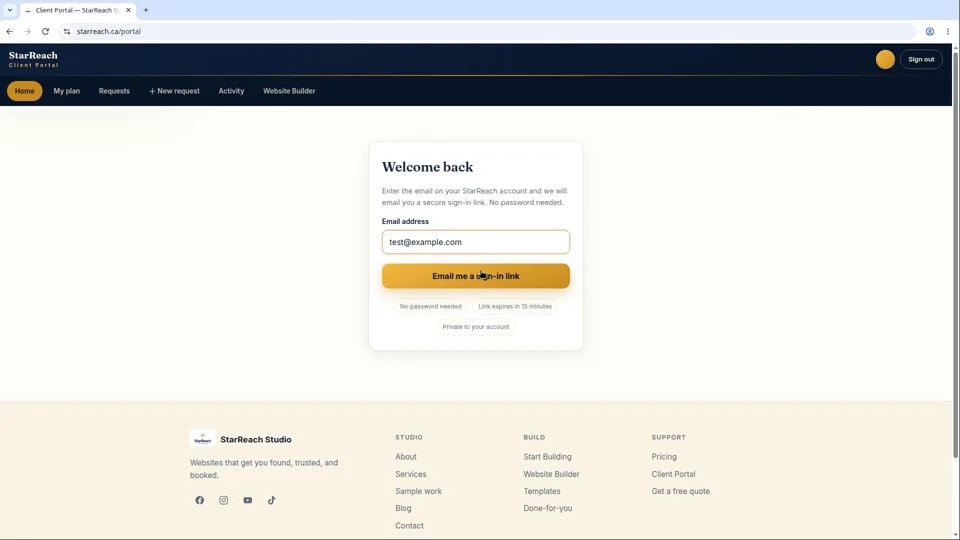
- Go to starreach.ca/portal.
- Enter the email address on your StarReach account and click Send sign-in link.
- Open the email and click the link. You're signed in — no password to remember, ever.
- Tour your dashboard: Home — an overview of your account at a glance. My plan — your plan name and everything that's included with it. Requests — ask us for changes to your site, and track their progress. Activity — a history of everything that's happened on your account. Website Builder — jump straight into the builder when you want to make edits yourself. Sign out — when you're done.
- That's mission control: your site, your plan, your requests, and your history — all in one place, always up to date.
In writing
The lesson in writing
The Client Portal is the front desk of your website — the one place where your site, your plan, and your history with us live together. You will find it at starreach.ca/portal. Signing in is deliberately unremarkable: enter the email address on your StarReach account, click Send sign-in link, open the email we send you, and click the link. You are in. There is no password to remember, forget, or reuse — the secure link in your inbox is the key, and it only ever goes to your address.
Inside, the dashboard is organised around the questions you actually have. Home is the overview — the state of your account at a glance. My plan shows the plan you are on and everything included with it; when you are wondering whether something is covered, this is the first place to look. Requests is how you ask us for changes — a new photo, new wording, a whole new page — and track their progress; the next lesson walks through it in full. Activity is your history: every request you have made, every change we have shipped, every plan event, in one timeline, so you never have to wonder whether something happened. And Website Builder jumps you straight into the Builder when you want to make edits with your own hands.
Two habits make the portal earn its keep. First, treat it as the record: if it is in Activity, it happened; if a request matters, put it in Requests rather than mentioning it in passing, so it is tracked until it is done. Second, remember it keeps your hours, not ours — it is two in the morning and you have just noticed the phone number on your site is wrong? Submit the request now. We will see it first thing and handle it; you do not have to remember to call anyone during business hours.
When you are stuck, the answer is almost always in one of the tabs: plan question — My plan. “Did that get done?” — Activity. “I need something changed” — Requests. “I will do it myself” — Website Builder. Sign out from the dashboard when you are done, especially on a shared computer.
Before you move on
- Sign in at starreach.ca/portal with your account email and the sign-in link from your inbox.
- Open My plan and find one thing included in your plan that you did not know was there.
- Open Activity and find the most recent event on your account — that timeline is your proof of work.
Read the full video transcript
Welcome to your Client Portal. This is mission control for your website — everything about your site lives here, in one place.
Getting in couldn't be simpler. Go to starreach.ca/portal and enter the email address on your StarReach account. We send you a secure sign-in link. Click it, and you're in. No password to remember. No password to forget. It just works.
Here's your dashboard. Let us walk you through it.
Home is your overview — the state of your account at a glance.
My plan shows what you're on and everything that comes with it. Wondering whether something's included? This is the first place to look.
Requests is how you ask us for changes. New photo, new wording, a whole new page — describe it here and it goes straight to our team. We'll show you exactly how in the next lesson.
Activity is your history. Every request you've made, every change we've shipped, every plan event — all in one timeline. You'll never wonder “did that happen?” again.
Website Builder jumps you straight into the builder itself, for when you want to make edits with your own hands.
Think of the portal as the front desk of your website. You don't need to know how anything works behind the scenes — you just tell us what you need, and track it all right here.
One more thing worth knowing: the portal is yours around the clock. It's two in the morning and you remember the phone number on your site is wrong? Submit the request now. We'll see it first thing and handle it. You don't have to remember to call anyone during business hours.
And if you ever get stuck, the answer is almost always in one of these tabs. Plan question? My plan. “Did that get done?” Activity. “I need something changed”? Requests. Want to do it yourself? Website Builder.
In the next lesson: how to request changes to your site, and what happens after you hit send.
Try it now
Open the product and put this lesson into practice — it takes seconds.